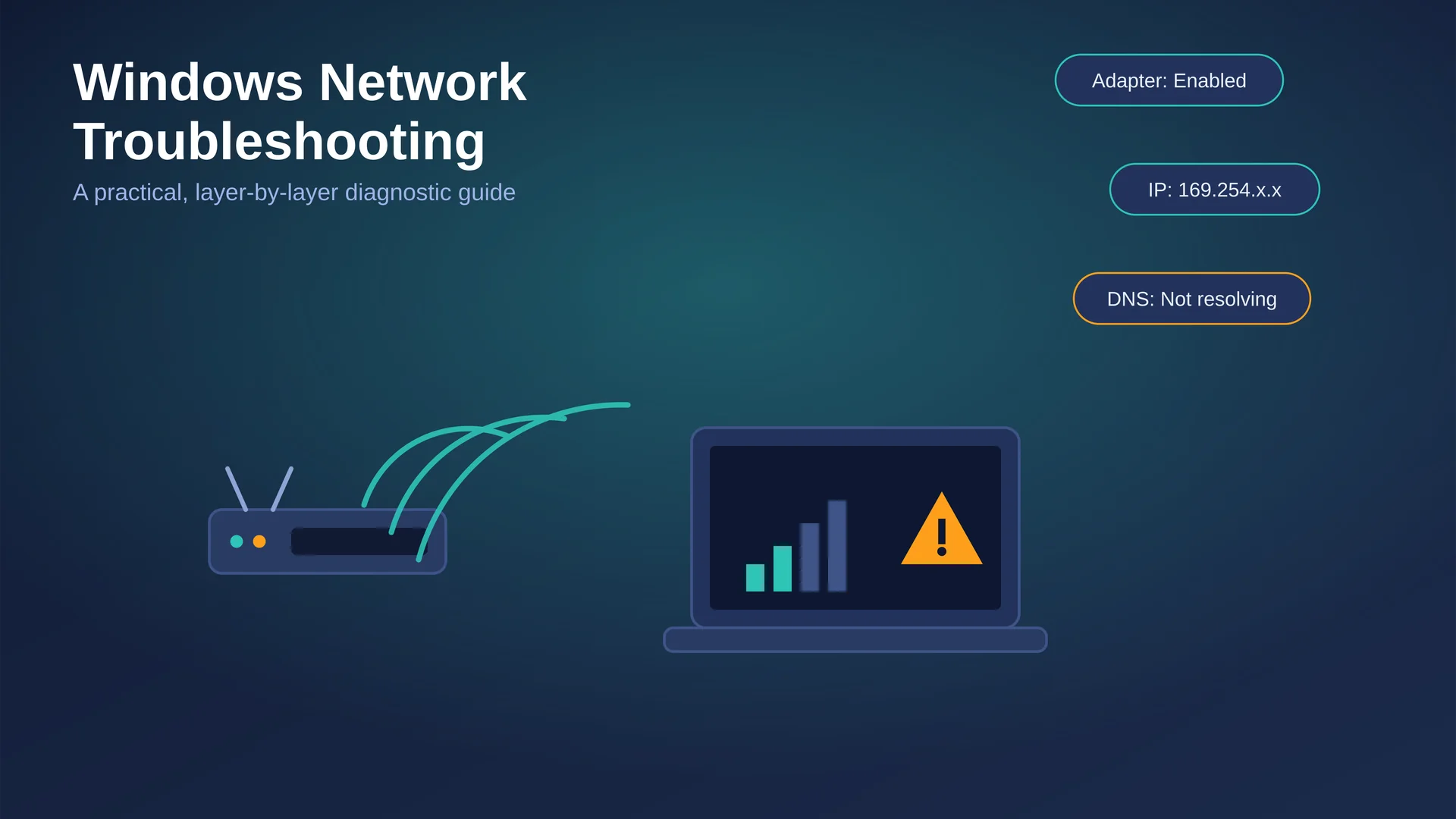
Few things derail a workday faster than a Windows PC that suddenly can't reach the internet. The network icon shows a connection, but nothing loads. Or Wi-Fi drops every few minutes. Or one specific site refuses to open while everything else works fine. The good news: the overwhelming majority of Windows network problems trace back to a small set of causes — a stale IP lease, an outdated driver, a corrupted DNS cache, or a router that simply needs a cold restart. This guide walks through the same diagnostic order that IT help desks use, so you fix the actual problem instead of guessing.
Why Windows Network Problems Happen
Windows networking is a stack of independent layers — physical hardware, drivers, IP addressing, DNS, and finally the application talking to the internet. A fault at any single layer produces symptoms that look identical to a fault somewhere else entirely. A browser that "can't find" a website might be a DNS problem, a Wi-Fi driver problem, or an ISP outage — the error message looks the same either way. That's why random fixes (rebooting five times, reinstalling a browser, buying a new router) often fail: they don't target the layer that's actually broken.
The fix is to check layers in order, from the physical connection upward, confirming each one before moving to the next.

Figure 1 — Check Windows networking layers from the bottom up; skipping a layer is the most common reason a fix doesn't stick.
Quick Triage: Start Here
Before changing any settings, gather three facts. They determine everything that follows.
Is it just this PC, or do other devices on the same network also lose connection? If everything is affected, the problem is the router or ISP, not Windows.
What does the network icon in the taskbar say — "Connected," "No internet, secured," or "Not connected"? Each points to a different layer.
Did anything change recently — a Windows update, a new driver, a VPN install, a router firmware update? Recent changes are the first suspects.

Figure 2 — A simple decision path for isolating the fault before you start changing settings.
Step-by-Step Fixes by Layer
1. Physical and Hardware Layer
Start here even though it feels basic — it resolves a surprising share of "software" complaints.
Power-cycle the modem and router: unplug both for 30 seconds, plug the modem in first, wait for it to sync, then the router.
On Ethernet, swap the cable. Old or damaged Cat5 cables cause intermittent packet loss that looks exactly like a software fault.
On Wi-Fi, check signal strength and move closer to the access point to rule out a weak radio link.
Check the router's internet/WAN light. If it's off or red, the fault is upstream of your PC — contact the ISP before troubleshooting Windows further.
2. Driver and Adapter Software Layer
An outdated, corrupted, or overly aggressive power-saving driver is one of the most common root causes of random disconnects, especially after a Windows feature update.
Open Device Manager (Win+X) → Network adapters → right-click your Wi-Fi or Ethernet adapter → Properties → Driver tab → Update Driver.

If problems started right after an update, use Roll Back Driver instead — newer isn't always better for Wi-Fi chipsets.
Under Properties → Power Management, uncheck "Allow the computer to turn off this device to save power." Windows aggressively powers down Wi-Fi adapters by default, which causes drops that look random.
Reset the TCP/IP and Winsock stacks, which store connection state that can become corrupted over time:
netsh winsock reset
netsh int ip reset
ipconfig /flushdns
Restart the PC after running these commands for them to take effect.
3. IP Configuration Layer (DHCP)
If the adapter shows "Connected" but nothing loads, check whether Windows actually received a valid IP address from the router.
ipconfig /all
Look at the IPv4 Address line. An address starting with 169.254.x.x is an APIPA address — Windows assigned it itself because no DHCP server responded. That confirms the fault is between the PC and the router, not further upstream.
ipconfig /release
ipconfig /renew
If renewal fails repeatedly, forget and rejoin the Wi-Fi network (Settings → Network & internet → Wi-Fi → Manage known networks → Forget), which clears a corrupted saved profile that can block authentication even with the correct password.
4. DNS and Name Resolution Layer
DNS translates website names into IP addresses. When DNS breaks, websites won't load by name even though the raw internet connection works — a telltale sign is that pinging an IP address (like 8.8.8.8) succeeds while pinging a domain name fails.
nslookup example.com
ipconfig /flushdns
If flushing doesn't help, switch to a public DNS resolver in the adapter's IPv4 properties — 1.1.1.1 (Cloudflare) or 8.8.8.8 (Google) are reliable alternatives to a misbehaving ISP DNS server.
Also check whether Windows defaulted to IPv6 in a network that only properly supports IPv4; temporarily disabling IPv6 on the adapter is a valid diagnostic step, not a permanent fix.
5. Application and Policy Layer
If lower layers check out but a specific app or site still fails, the fault usually sits above raw networking:
A VPN client left connected (or half-disconnected) can silently capture all traffic.
A leftover proxy setting (Settings → Network & internet → Proxy) routes traffic through a server that's no longer reachable.
Third-party antivirus or firewall software can block specific ports or apps after an update.
Browser-level DNS-over-HTTPS settings can conflict with a corporate or router-level DNS override.
Built-In Windows Tools Worth Using
Windows 11 ships several tools that automate much of the above and are worth running before manual steps:
Settings → System → Troubleshoot → Other troubleshooters → Network and Internet — checks adapter status, IP configuration, gateway reachability, and DNS behavior automatically.
The Get Help app can run the same network diagnostics with guided steps for less technical users.
Network Reset (Settings → Network & internet → Advanced network settings → Network reset) reinstalls all network adapters and restores default settings — a strong last resort, since it also removes saved Wi-Fi passwords and VPN configurations.
Command-Line Toolkit Reference
Command
ipconfig /all
What it does
Shows current IP, subnet, gateway, and DNS settings for every adapter.
Command
ipconfig /release + /renew
What it does
Drops and re-requests a DHCP lease from the router.
Command
ipconfig /flushdns
What it does
Clears the local DNS cache of stale or bad entries.
Command
netsh winsock reset
What it does
Resets the Windows Sockets catalog, fixing many "connected but nothing works" states.
Command
netsh int ip reset
What it does
Resets the entire TCP/IP stack to default.
Command
ping 8.8.8.8
What it does
Tests raw internet reachability using an IP address (bypasses DNS).
Command
nslookup example.com
What it does
Tests whether DNS name resolution is working.
Command
tracert example.com
What it does
Shows the network hops between your PC and a destination — useful for spotting where traffic stalls.
Command
netsh wlan show wlanreport
What it does
Generates a detailed Wi-Fi session history report, including disconnect reasons and driver errors.
When It's Not Your PC at All
If other devices on the same network also fail, or the router's internet light is off, the issue is almost certainly the ISP or the router itself, not Windows. Confirm with the ISP before spending more time inside Windows settings. Hardware upgrades — a Cat 6 Ethernet cable, a Wi-Fi 6/6E adapter, or a modern router with QoS — resolve chronic instability that pure software troubleshooting cannot.
Preventing Repeat Problems
Keep network drivers current, but avoid auto-updating them mid-project — schedule updates for low-risk times.
Disable adapter power-saving on desktops and any laptop regularly used on Wi-Fi.
Reboot routers on a schedule (weekly, via a smart plug if needed) to clear memory leaks in consumer-grade firmware.
Document your normal ipconfig /all output once, while everything works — it gives you a fast baseline to compare against during the next outage.
Frequently Asked Questions
Why does my Windows 11 PC say "No internet, secured"?
This means the adapter authenticated to the Wi-Fi network but never received a working internet path — typically a DHCP or gateway problem. Start at the IP Configuration layer above.
Why does my internet work on my phone but not my Windows PC?
This isolates the fault to the PC itself (driver, IP configuration, or a stuck cache) rather than the router or ISP, since the phone proves the network itself is healthy.
Does Network Reset delete my files?
No. It reinstalls network adapters and restores default network settings only. It does remove saved Wi-Fi passwords and installed VPN software, which you'll need to reconfigure.
Should I disable IPv6?
Only as a temporary diagnostic step. Leaving IPv6 permanently disabled can cause problems on networks and services that expect it; re-enable it once you've confirmed it wasn't the cause.