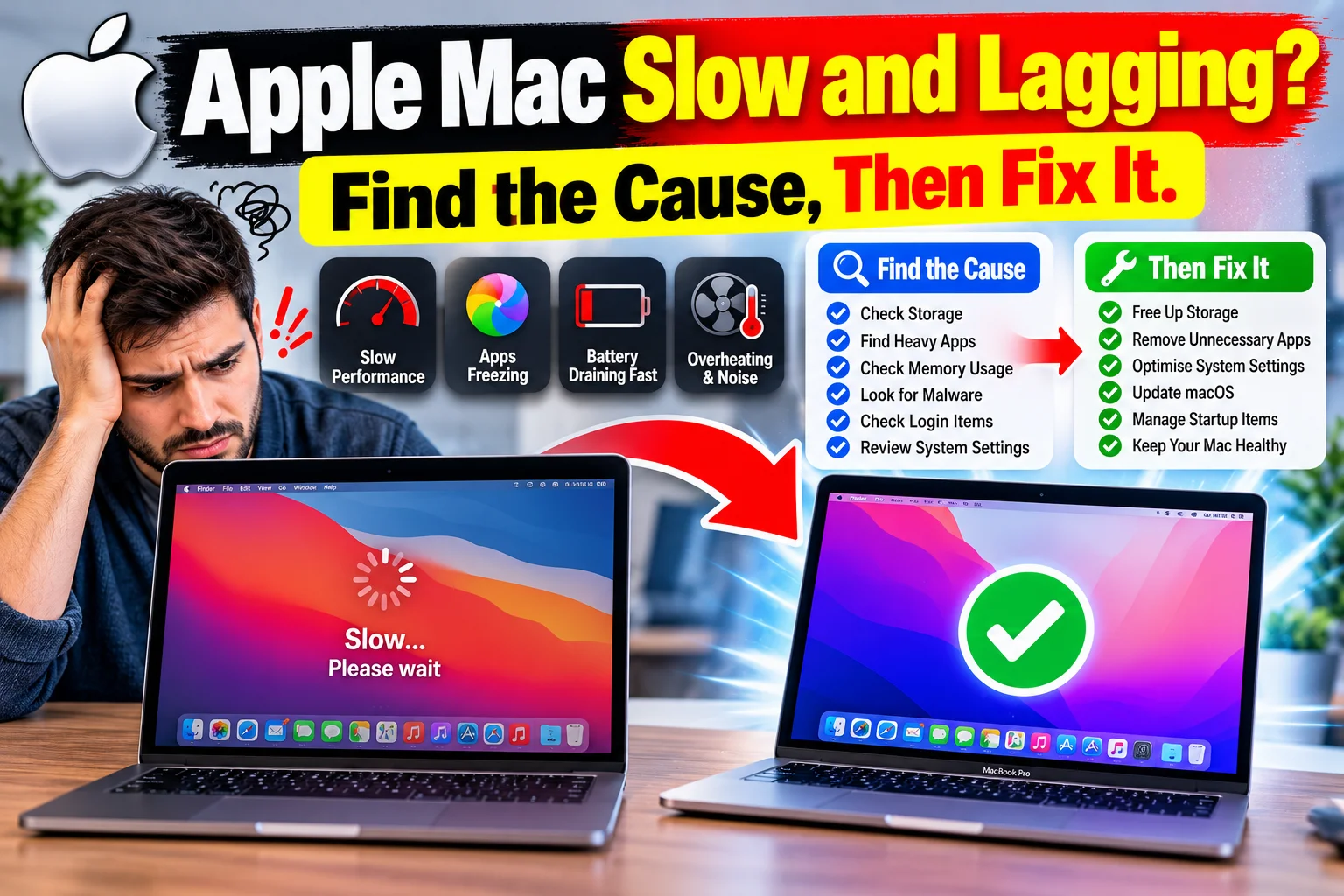
Mac slow and lagging? Find the cause, then fix it.
A practical guide for MacBook Air, MacBook Pro, iMac, Mac mini and Mac Studio: how to diagnose what is slowing your Mac, 15 fixes in order of impact, official resources, and a daily 2-minute check.
Updated October 31, 2026 · 12 min read · Works on Apple silicon and Intel Macs
On this page
About the images: the figures below are clean illustrations of the macOS screens you will use. Menu names can differ slightly between macOS versions. For a tutorial site, swap in your own screenshots by replacing each <svg> with an <img> that has descriptive alt text.
Match your symptom to a likely cause
Start here. The way your Mac is slow usually points to the cause.
What you notice | Most likely cause | Go to |
|---|---|---|
Spinning beach ball in one app | That app is overloaded or frozen | Fix 1, Fix 6 |
Slow right after login | Too many startup items | Fix 3 |
Slow after a macOS update | Spotlight and Photos re-indexing, normal for 1 to 2 days | Fix 2 |
Everything lags, fans loud, Mac hot | Heavy process or poor airflow | Fix 7, Fix 12 |
Slow when many apps or tabs are open | Memory pressure | Fix 5, Fix 6 |
Slow and disk is almost full | Not enough free storage | Fix 4 |
Slow on battery, normal when plugged in | Low Power Mode or aging battery | Fix 13 |
Pop-ups, new browser home page | Adware or unwanted extensions | Fix 10 |
Diagnose with Activity Monitor
Open it with Command + Space, type Activity Monitor, press Return. Click a column header to sort. Work through the tabs in this order.
Activity Monitor window sorted by CPU percentage. One browser helper process uses 94 percent CPU and is highlighted as the cause of lag. Activity Monitor: All Processes CPU MemoryEnergy DiskNetwork Process Name% CPUThreadsPID Browser Helper (Renderer)94.2284172 Video editor31.0443310 mds_stores12.69310 WindowServer6.115402 Finder0.87515 Quit
CPU tab: sort by % CPU. A process that stays above 80% for minutes is your culprit. Select it and click the stop button (X) in the toolbar.
Memory pressure graph with green, yellow and red zones. Green means healthy, yellow means under load, red means the Mac needs more memory or fewer apps. Memory tab: Memory Pressure Red: too little memory.Quit apps, close tabs. Yellow: under load.Watch for swap use. Green: healthy.High “used” is fine.
Judge memory by the pressure color, not by how much RAM is “used.” macOS uses spare memory as cache on purpose.
Also check the Energy tab (apps draining battery and heating the Mac) and the Disk tab (heavy writes). Terminal gives the same data:
top -o cpu -l 1 | head -15     # top CPU processes
memory_pressure                # memory health summary
df -h /                        # free disk space
15 fixes, highest impact first
Fix 1. Quit or force quit the heavy app 2 min
Press Option + Command + Esc, choose the app that says “Not Responding” and click Force Quit. If one process keeps returning to the top of Activity Monitor, update or reinstall that app.
Fix 2. Restart and install updates 10 min
Restart clears memory and stuck processes. Then open System Settings > General > Software Update and install macOS and app updates. After a major update, Spotlight and Photos re-index for a day or two, and the Mac settles on its own.
Fix 3. Remove startup items 3 min
Open System Settings > General > Login Items & Extensions. Switch off apps you do not need the moment you log in.
List of startup apps with toggles. Unneeded apps are switched off, essential ones stay on. Login Items & Extensions Open at Login Chat app Cloud sync Game launcher Music helper
Keep security software and cloud sync if you use them. Switch the rest off; you can still open them manually.
Fix 4. Free up storage 15 min
Open System Settings > General > Storage. Aim for at least 10 to 15 percent free. Empty Trash, delete old downloads and installers, offload large videos to an external drive or cloud storage, and review the recommendations macOS lists.
Storage bar split into Apps, Documents, Photos, System and a small free segment. A free-space target of 15 percent is marked. Macintosh HD: 468 GB of 500 GB used AppsDocuments PhotosSystem Data Free Only 6% free: expect lag, failed updates and slow saves. Target: keep 10 to 15 percent of the drive free.
Illustrative storage bar. Your categories and sizes will differ.
Fix 5. Reduce memory pressure 5 min
Close apps you are not using (Command + Q, not just the red dot). Keep fewer than 20 browser tabs open or use a tab-suspending feature. If Memory Pressure is often red, the Mac needs more RAM; on Apple silicon that means a newer Mac, since memory is built in.
Fix 6. Tame the browser 5 min
Browsers are the top cause of lag. Remove unused extensions, disable hardware-heavy sites with autoplay video, update the browser, and use the browser’s own task manager to find the tab eating CPU.
Fix 7. Check heat and airflow 5 min
A hot Mac slows itself down to protect its chips. Use it on a hard flat surface, not a bed or sofa, keep vents clear, and avoid direct sun. Constant loud fans with no heavy app running may need hardware service.
Fix 8. Reduce visual effects 2 min
On older Macs, open System Settings > Accessibility > Display and switch on Reduce transparency and Reduce motion. This lowers graphics load.
Fix 9. Test with a new user account 10 min
Create a new admin user in System Settings > Users & Groups and log in. If the Mac is fast there, the problem is in your account’s settings, login items or app data, not the hardware.
Fix 10. Remove adware and unknown apps 10 min
Delete apps you do not recognize from Applications, check browser extensions and home page, and review profiles in System Settings > General > Device Management if that item appears. Install software only from the App Store or developers you trust.
Fix 11. Run Disk Utility First Aid 5 min
Open Disk Utility, select the startup volume and click First Aid. It checks and repairs file system errors.
Fix 12. Run Apple Diagnostics 5 min
Unplug accessories, shut down, then hold the power button on Apple silicon (or hold D at startup on Intel) and follow the prompts. Note any reference code and look it up with Apple Support.
Fix 13. Check battery and power mode 2 min
Open System Settings > Battery. If Low Power Mode is on, performance is limited. If battery health says Service Recommended, an aging battery can throttle a laptop.
Fix 14. Safe Mode and NVRAM reset (Intel) 10 min
Safe Mode clears some caches and disables extensions; restart in it, then restart normally. Apple silicon Macs reset firmware settings automatically on restart. Intel Macs can reset NVRAM by holding Option + Command + P + R at startup.
Fix 15. Back up, then reinstall macOS 1 to 2 hrs
Last resort. Make a Time Machine backup first, then reinstall macOS from Recovery. Reinstalling keeps your files in most cases, but a backup protects you if anything goes wrong.
Free and official resources
Resource | Use it for | Link |
|---|---|---|
Activity Monitor (built in) | Find CPU, memory, disk and energy hogs | |
Apple Diagnostics | Hardware test with reference codes | |
Mac User Guide | Official step-by-step help for every setting | |
Apple Support | Chat, phone or Genius Bar booking | |
Storage settings (built in) | Recommendations to free space | System Settings > General > Storage |
Disk Utility (built in) | First Aid repair, drive info | Applications > Utilities |
Time Machine (built in) | Free backup before any big change | System Settings > General > Time Machine |
Terminal commands | Fast health snapshot |
|
Third-party cleaners are optional. Try the built-in tools first, and only install software from a developer you trust.
Full Mac speed checklist
Check items as you go. Your progress is saved in this browser only.
Force quit any frozen app (Option + Command + Esc)
Restart the Mac
Install macOS and app updates
Switch off unneeded Login Items
Free storage until 10 to 15 percent is available
Check Memory Pressure is green or yellow
Remove unused browser extensions and tabs
Turn on Reduce transparency and Reduce motion if the Mac is older
Test in a new user account
Delete unknown apps and extensions
Run Disk Utility First Aid
Run Apple Diagnostics
Check battery health and Low Power Mode
Back up with Time Machine
Reinstall macOS only if everything above fails
Check all steps.
Daily quick check: 2 minutes
A short routine catches problems before they become lag.
Every day
Quit apps you finished using (Command + Q)
Glance at Activity Monitor CPU tab for any process above 80%
Close extra browser tabs
Confirm Memory Pressure is not red
Shut down or sleep at day’s end
Every week
Restart the Mac
Check free space is above 15%
Empty Trash and Downloads
Install pending updates
Every month
Review Login Items
Remove unused apps and extensions
Verify the Time Machine backup ran
Clean vents and the keyboard area gently
# Daily 10-second health snapshot (paste into Terminal)
df -h / | tail -1
memory_pressure | tail -1
top -o cpu -l 1 -n 3 | tail -4
Frequently asked questions
Why is my Mac suddenly so slow?
Common causes are a nearly full disk, one app using too much CPU or memory, too many startup items, a pending macOS update, background indexing after an update, or heat. Open Activity Monitor to see which one applies.
How much free storage should a Mac have?
Keep roughly 10 to 15 percent of the drive free. Below that, macOS has little room for swap and temporary files and the Mac can lag noticeably.
Does restarting a Mac really help?
Yes. A restart clears memory, stops runaway background processes and applies pending updates. Restart at least once a week.
Should I use a Mac cleaner app?
Usually no. macOS has built-in storage tools, and aggressive cleaners can delete useful caches or add background processes. Use built-in tools first.
When should I contact Apple Support?
If Apple Diagnostics reports an error, the battery shows Service Recommended, or the Mac is still slow after a clean user account test and a macOS reinstall, contact Apple Support.
Mac is a trademark of Apple Inc. This guide is independent and not affiliated with Apple. Back up your data before making major changes.