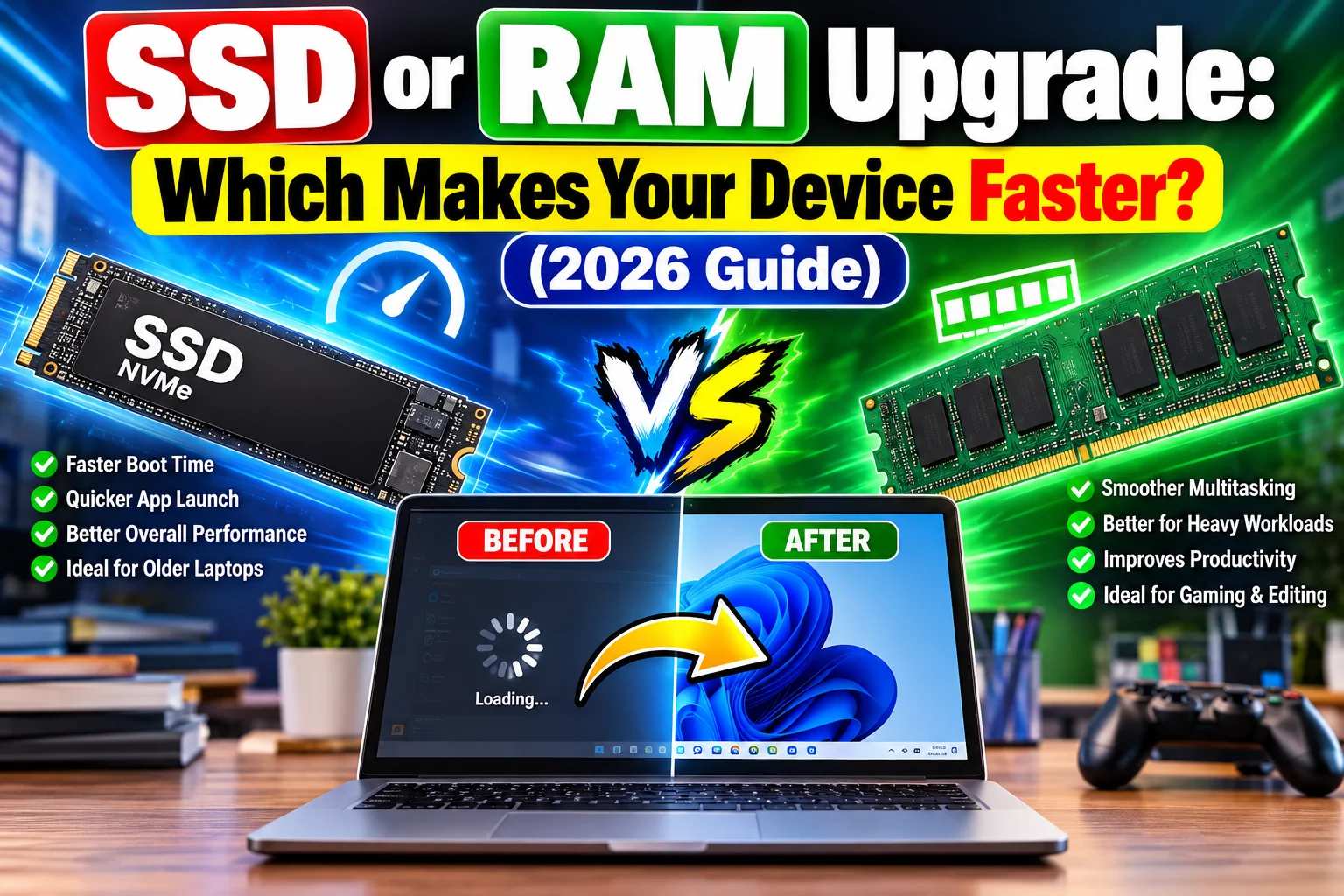
Should You Add an SSD or More RAM?

PC UPGRADE GUIDE · PERFORMANCE
Should You Add an SSD or More RAM? How to Pick the Upgrade That Actually Makes Your PC or Laptop Faster
Updated October 31, 2026 · About 14 minutes to read · Windows 10/11, with notes for macOS and Linux
Your computer feels slow. Everyone has an opinion: “Just buy an SSD,” “You need more RAM,” “Reinstall Windows.” Some of that advice is right, and some of it will cost you money for no visible gain. The honest answer to “SSD or RAM?” is it depends on what your machine is actually struggling with, and you can find that out for free in about ten minutes.
This guide walks you through the whole decision: what each part does, how to measure your own system with free tools, a flowchart for choosing, a compatibility checklist (especially for laptops), what the 2026 memory-price squeeze means for your budget, free fixes to try first, safe upgrade steps, and expert tips.
The short version (TL;DR) Still on a hard disk (HDD)? Upgrade to an SSD first. Nothing else gives a bigger day-to-day speed jump. Already on an SSD and Windows shows memory above roughly 80–85% during normal work? Add RAM. SSD present, memory comfortable, yet still slow? The cause is probably CPU, heat, startup apps, malware, drivers or a nearly full drive, not a missing upgrade. Always measure first. Task Manager, CrystalDiskInfo and HWiNFO are free and tell you which limit you are hitting. |
1. What RAM and an SSD each actually do
Both are “memory” in everyday speech, which is why people mix them up. They do different jobs:
RAM (Random Access Memory) is the short-term workspace. Open programs, browser tabs and the files you are editing live here while you use them. It is very fast, but it is wiped when you shut down.
An SSD (Solid State Drive) is long-term storage. Windows, your apps, photos and documents live here permanently. It decides how quickly the PC boots and how fast programs and files load.
The kitchen analogy below is the easiest way to remember it.

Figure 1. Too little RAM makes the chef run to the pantry constantly; a slow pantry slows every fetch.
When RAM fills up, Windows starts moving data to a “page file” on your drive. That is why low RAM and slow storage make each other worse: a machine with 8 GB of RAM on an old hard disk stutters badly, while the same 8 GB on a fast SSD hides the problem better (but does not remove it).
2. Symptom checker: what are you noticing?
Use this table as a first guess. Then confirm with the measurements in section 3.
What you notice | Most likely bottleneck | First thing to try |
|---|---|---|
Takes minutes to boot; programs open slowly; disk shows 100% in Task Manager | Mechanical hard disk (HDD) or a failing drive | Clone to an SSD |
Fast to boot, but the system freezes or stutters when you open many tabs and apps | Not enough RAM | Add RAM (check slots first) |
Browser tabs reload when you switch back to them; apps close unexpectedly | RAM exhausted | Add RAM, close heavy tabs, use tab sleeping |
Large game or video-editing files load slowly, but everything else is fine | Storage speed or capacity | Faster or larger NVMe SSD |
Slow only when the laptop is hot or on battery; fans roar | Heat or power settings | Clean vents, change power mode, check thermals |
SSD is over 90% full and writes have slowed down | Full drive, not a slow one | Free space or fit a larger SSD |
Everything lags even on a fresh boot with free RAM and a healthy SSD | CPU limits, malware, drivers or startup bloat | Run the free fixes in section 8 |
3. Measure before you buy: free tools to check your system health
A ten-minute check can save you from buying the wrong part. Start with what Windows already gives you, then add two free utilities for the details.
Step A: Task Manager (built in, no download)
Press Ctrl + Shift + Esc, open the Performance tab, and look at three places while you do your normal work (browser, Office, whatever you really use):

Figure 2. An illustrative layout (not a screenshot) of the numbers to watch in Task Manager.
Memory: note “In use” against the total, plus “Committed” and “Slots used.” The slot count tells you whether you have a free socket for another stick.
Disk: the label shows whether the drive is an HDD or SSD. “Active time” pinned near 100% with low transfer speeds points to a storage bottleneck.
CPU: sustained 100% while memory and disk are calm means the processor, not RAM or storage, is the limit.
Step B: Free utilities for a deeper look
Always download from the developer’s own site. Third-party mirrors sometimes bundle adware or modified installers.
Tool | What it tells you | Where to get it |
|---|---|---|
CrystalDiskInfo | Drive health from S.M.A.R.T. data: status, temperature, power-on hours, and wear on SSDs. Warns you before a drive fails. Open source (MIT licence). | |
CrystalDiskMark | Benchmarks real read/write speed of HDDs, SSDs, USB drives and SD cards, so you can compare your drive with what it should deliver. Free. | |
HWiNFO | Full hardware inventory and live sensors: exact RAM type, speed, slots and modules, plus CPU/GPU temperatures. Free for personal use; installer and portable versions. | |
CPU-Z | Quick, lightweight view of RAM type (DDR4/DDR5), frequency, timings, channel mode and which slots are filled. | |
Windows Memory Diagnostic | Built-in RAM error test. Press Win, type “Windows Memory Diagnostic” and restart to run it. Useful if you suspect faulty memory. | Built into Windows |
MemTest86 | Bootable, more thorough RAM test, worth running after installing a new module or if you see random crashes. | |
Resource Monitor / Performance Monitor | Built-in. Shows which process hammers memory or disk. Press Win + R and type resmon or perfmon. | Built into Windows |
Autoruns (Sysinternals) | Shows everything that starts with Windows so you can disable startup bloat. | |
smartmontools | Command-line S.M.A.R.T. checks. Handy on Linux and for scripted checks on any OS. |
Mac and Linux users macOS: Activity Monitor → Memory tab. Watch “Memory Pressure” (green is fine, red is trouble). Note that most modern Macs have RAM and storage soldered to the board, so they cannot be upgraded later. Linux: run free -h for memory and smartctl -a /dev/sdX (from smartmontools) for drive health. |
4. How to read what you find
Reading your RAM numbers
Comfortable: memory stays under about 70% during your heaviest normal session.
Warning zone: 80–85% or more for long stretches, with “Committed” well above your installed RAM. Windows is paging to disk.
Spikes are normal. A one-minute spike when you open a big file is not a problem. Constant pressure is.
Check the slots. “Slots used: 2 of 2” means you must replace sticks (for example 2×4 GB with 2×8 GB), not add one. “1 of 2” means you can add a matching stick. “Slots used: 0 of 0” or a laptop spec of “on-board” usually means soldered memory.
Reading your SSD or HDD numbers
CrystalDiskInfo status: “Good” is healthy; “Caution” or “Bad” means back up now and plan a replacement. Treat “Good” as an indicator, not a guarantee.
CrystalDiskMark: compare your result against the manufacturer’s rating. A SATA SSD at roughly 500 MB/s or an NVMe drive in the thousands is normal; an HDD at about 100–150 MB/s explains sluggishness immediately.
Free space: try to keep 10–20% of an SSD free. A nearly full drive writes slower and has less room for the page file and updates.

Figure 3. Typical rated speeds by storage type. The jump from HDD to any SSD matters far more than SSD to faster SSD for everyday use.
5. When an SSD is the right upgrade, and when RAM is
Choose an SSD upgrade when…
Your system drive is an HDD. This is the single most noticeable upgrade for older PCs and laptops: boot times, app launches and general responsiveness all improve dramatically.
Your current SSD is small, nearly full, or showing wear or errors in CrystalDiskInfo.
You work with big files (video, games, datasets) and load times are the pain point.
You have a free M.2 slot, which lets you add a fast NVMe drive without removing anything.
Choose a RAM upgrade when…
You already have an SSD, but the system chokes with many apps or browser tabs open.
Task Manager shows sustained high memory use and heavy “Committed” values.
You game, edit photos or video, run virtual machines, or experiment with local AI tools, all of which are memory-hungry.
You have only 4 or 8 GB and a free slot or upgradeable sticks.
How much RAM is enough in 2026?
Windows 11 officially needs a minimum of 4 GB and lists 8 GB as the recommended amount, but the operating system alone typically uses around 3–4 GB at idle, so real-world needs are higher. Commonly cited 2026 guidance is that 16 GB is the practical sweet spot for most people, while gaming, creative work and heavier workloads lean toward 32 GB. Microsoft’s own gaming guidance in May 2026 described 16 GB as the baseline and 32 GB as the comfortable choice when you also run browsers, Discord or streaming tools alongside games. Adobe lists 8 GB as the minimum for Photoshop with 16 GB recommended, and Blender lists 8 GB minimum with 32 GB recommended.

Figure 4. Practical RAM targets by workload (a synthesis of commonly cited 2026 guidance).
6. The decision flowchart
Follow the arrows from the top. If both limits apply, do the cheaper fix first, measure again, and then decide about the second.

Figure 5. SSD or RAM? A simple decision path using the numbers from Task Manager.
7. Compatibility checklist (read this before you pay)
This is where most upgrade mistakes happen, especially on laptops.
For RAM
Type must match: DDR3, DDR4 and DDR5 are not interchangeable. Laptops use the smaller SO-DIMM sticks; desktops use full-size DIMMs. HWiNFO or CPU-Z will tell you what you have.
Soldered or socketed? Many thin-and-light laptops solder the RAM to the motherboard, and some mix soldered and socketed memory. If it is soldered, the only way to get more is to buy a different machine.
Maximum capacity: check your laptop or motherboard manual or the manufacturer’s spec page for the maximum supported per slot and total.
Use matching pairs. Two identical sticks run in dual-channel mode, which is faster than a single stick, especially for integrated graphics.
Speed: extra-fast kits will usually downclock to what your board and CPU support. Paying for speed you cannot use is wasted money.
For SSDs
Form factor: a 2.5-inch SATA SSD fits older laptops with a hard-disk bay. M.2 drives are small “gum-stick” modules, and they come in SATA and NVMe flavours.
M.2 key and length: confirm your slot supports NVMe (not SATA-only) and the length, usually 2280.
Interface generation: PCIe 4.0 and 5.0 drives work in older slots but run at the slot’s slower speed. For everyday use, PCIe 3.0 or 4.0 is already far beyond what you will notice.
Heat: fast NVMe drives can throttle when hot. Use the motherboard heatsink, or a thin one that fits your laptop.
Check the warranty. Opening some laptops can affect warranty terms, so check before you start.
8. Free and cheap fixes to try first
Sometimes the best upgrade is no upgrade. Before spending money, work through these, and re-measure after each one.
Restart and update. Install Windows updates, GPU and chipset drivers, and the latest BIOS if the manufacturer recommends it.
Trim startup apps. Task Manager → Startup apps, or Autoruns. Disable anything you do not need at boot.
Scan for malware. Run a full Microsoft Defender scan. Hidden miners and adware eat CPU, RAM and disk.
Tame the browser. Browsers are often the biggest memory consumers. Turn on memory saver or tab sleeping, and remove unused extensions.
Free disk space. Settings → System → Storage → Temporary files, plus Storage Sense. Keep 10–20% of your SSD free.
Check the power plan. A laptop stuck in a power-saver mode is deliberately slowed. Try Balanced or Best performance when plugged in.
Fix heat. Clean vents and fans, and replace dried thermal paste on older machines. Throttling feels exactly like a slow computer.
Reduce visual effects on very low-spec machines: System → About → Advanced system settings → Performance.
Back up and reinstall Windows. On a heavily cluttered system, a clean install can feel like a new PC. Use “Reset this PC” after backing up.
Check the real culprit app. Resource Monitor often shows one misbehaving program doing most of the damage.
9. The 2026 price reality: why timing matters
This year is unusual. Memory prices have risen sharply because AI data centres are absorbing huge amounts of the world’s DRAM and NAND production. Market tracker TrendForce reported conventional DRAM contract prices rising by roughly 90–95% quarter over quarter in the first quarter of 2026, with further large increases in the second quarter. Its July 2026 outlook still projected increases of about 13–18% in the third quarter and 3–8% in the fourth. Gartner has forecast a combined DRAM and SSD price rise of around 130% by the end of 2026, and several PC makers have warned about higher system prices.
Reported street prices tell the story: one industry roundup put a 32 GB DDR5 kit at about $80–120 in mid-2025 and $300–500 by early 2026. SSD (NAND) prices have followed the same direction. Prices change month to month, so check current listings rather than relying on any figure printed here.
What this means for your decision The SSD-first advice is stronger than ever for HDD users. A modest SATA or entry NVMe SSD is still the most cost-effective speed-up available. Do not overbuy RAM. Buy the capacity you will actually use (often 16 GB), not the biggest kit. If you have a free slot, you can add more later. Do not panic-buy based on rumours. Analysts expect elevated prices to persist for some time, but short-term moves are unpredictable. Buy when your measurements say you need it. Compare against a new machine. With memory this expensive, check the total cost of an upgrade against a refurbished or new PC before deciding. |
10. How to upgrade safely
Adding or replacing RAM
Back up important files. Power off, unplug the charger and, on a laptop, disconnect the battery if the manual says to.
Touch bare metal to discharge static, and handle sticks only by the edges.
Open the memory bay. Angle the SO-DIMM or DIMM into the slot and press until it clicks into the clips.
Boot, then confirm the new amount in Task Manager → Performance → Memory.
Run Windows Memory Diagnostic or MemTest86 to rule out a faulty stick.
Moving to a new SSD
Back up your data first, always. A clone can fail.
Fit the new SSD (or connect it with a USB-to-SATA/NVMe adapter), then use the clone tool from the SSD maker, or a free tool such as Clonezilla (clonezilla.org), to copy your drive.
Swap the drive, boot, and confirm that Windows, your files and licensed apps work normally.
Check the drive in CrystalDiskInfo, and benchmark it in CrystalDiskMark to confirm the speed you paid for.
Keep the old drive untouched for a few days as a safety net, then wipe it before you resell or recycle it.
If you are not confident opening your laptop, a local repair shop will usually do either job quickly and cheaply.
11. Expert tips
Measure the pain, not the specs. Upgrade the part that your own measurements flag, not the one that sounds impressive.
HDD to SSD beats SSD to a faster SSD. If you already have an SSD, a faster one rarely changes everyday speed. Spend the money on RAM or a new machine instead.
Dual-channel matters. Two 8 GB sticks usually beat one 16 GB stick for speed, especially with integrated graphics.
Do not mix random kits. Different speeds and timings can force the whole set down to the slowest, or cause instability.
Keep free space on your SSD. Performance and lifespan are better with breathing room.
Windows 10 users: the operating system itself has moved on, so before buying hardware, confirm your upgrade or security-update path.
Do not trust “RAM booster” or “memory cleaner” apps. They free memory that Windows would have reused anyway and often make things worse.
Use ReadyBoost? No. It was designed for slow hard disks and does nothing useful on a system with an SSD.
Think two years ahead. If you can afford it and your laptop supports it, a single step up (8 to 16 GB, or 16 to 32 GB) often outlasts a cheaper stopgap.
Check the whole machine. If the CPU is a decade old, no amount of RAM or SSD will make it feel modern.
12. Common mistakes to avoid
Buying DDR5 for a DDR4 machine (or the reverse).
Buying desktop DIMMs for a laptop that needs SO-DIMMs.
Assuming RAM is upgradeable without checking whether it is soldered.
Buying a PCIe 5.0 SSD for a board that only supports PCIe 3.0 and expecting miracle speeds.
Ignoring a failing drive. If CrystalDiskInfo says Caution or Bad, back up first, upgrade second.
Skipping the backup before cloning or reinstalling.
Downloading tools from random mirror sites rather than the developer’s page.
13. Frequently asked questions
Will more RAM make my PC boot faster?
Not much. Boot speed is mostly storage and startup apps. RAM helps once you are running many things at once.
Will an SSD fix a PC that is out of RAM?
It helps, because paging to an SSD is far less painful than paging to a hard disk, but it does not replace RAM. If memory is the bottleneck, add RAM.
Is 8 GB of RAM enough in 2026?
For light use (web, documents, streaming) it works, but it is tight because Windows 11 itself uses around 3–4 GB at idle. For general use, 16 GB is the safer target.
Is 32 GB overkill?
For web and office, yes. For gaming with other apps open, creative work, virtual machines or local AI, it is increasingly reasonable.
Can I add an SSD and keep my hard disk?
Often yes. Many desktops and some laptops have room for both. Put Windows and apps on the SSD and bulk files on the HDD.
NVMe or SATA SSD?
NVMe is faster on paper, but for everyday tasks the difference from a good SATA SSD is small. Pick based on what your machine supports and the price.
How long do SSDs last?
Modern consumer SSDs typically outlast the PC they are in under normal use. CrystalDiskInfo shows wear and health so you can watch it.
Does the order matter if I can only afford one?
Hard disk? SSD first. Already on an SSD with high memory use? RAM first. Neither? Start with the free fixes.
Conclusion
There is no universal winner between an SSD and more RAM. There is only the bottleneck on your machine. If you are still running Windows from a hard disk, the SSD is the answer. If your SSD is in place and Task Manager shows memory under constant pressure, more RAM is the answer. If neither is true, save your money and fix startup apps, heat, drivers and malware.
Run the free checks in section 3, follow the flowchart in section 6, confirm compatibility in section 7, and you will spend on the right part, once.
Quick links: tools mentioned in this guide
Notes: Figures are original illustrations and charts created for this article. Speed figures are typical rated values and will vary by model. Price and market information reflects reporting available as of October 2026 and changes frequently. Always back up your data before changing hardware, and check your device’s manual or manufacturer for compatibility and warranty terms.